
Vendor Actions
<div id="heading15">If you are active DIRECT vendor for any service and have received order from buyer, you should be able to find "Vendor Actions" button on order progress page which can be used to perform following actions:-
<span class="wysiwyg-underline">Overview:</span>
- How to use Reply Templates?
- How to Update Progress Tracker?
- How to Mark Delivery?
- How to Request Cancellation?
<span class="wysiwyg-underline">How to use Reply Templates?</span>
- Find "Insert Template" button and click it.!Order-679-Buy-Android-Reviews--Google-Play-Store--Real-Users--Guaranteed-ElanceMarket.png
- Choose the desired template and click "Save" to insert it.
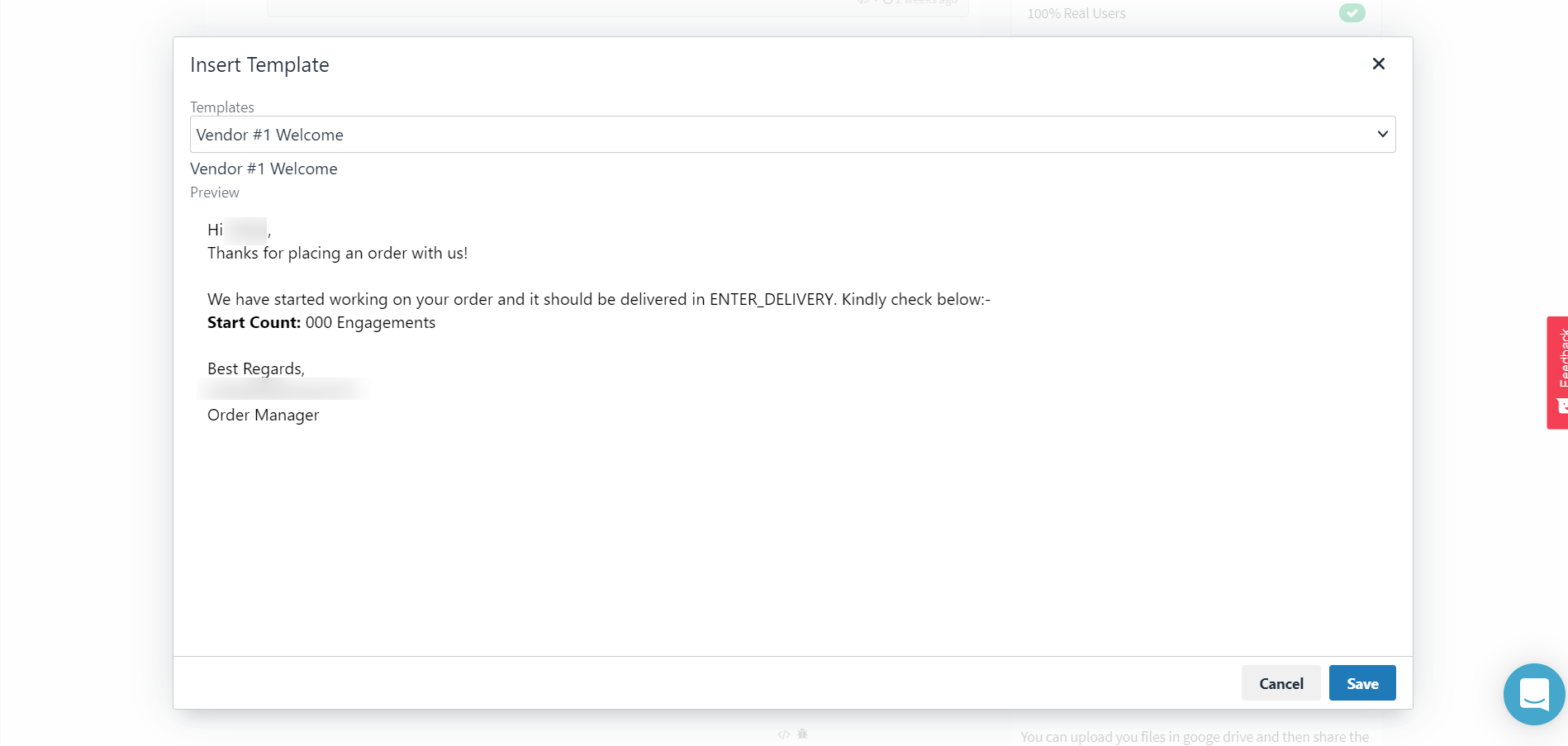
- Customize the message from text editor as per your requirement and send it.!mceclip3.png
<span class="wysiwyg-underline">How to Update Progress Tracker?</span>
- Find "Vendor Actions" button and click it.
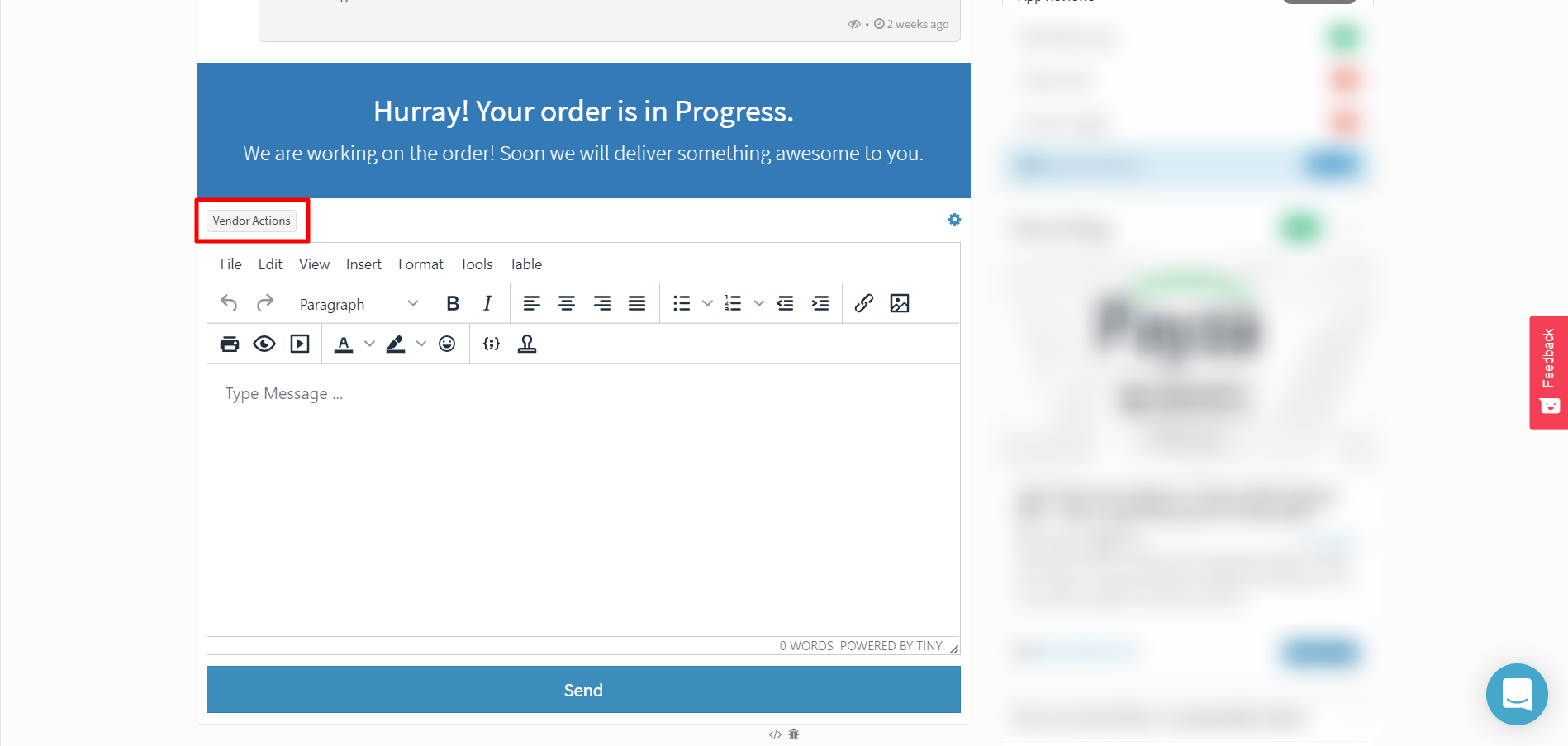
- Click "Tracker" and you should be able to enter your Tracker Link in "Progress Tracking URL" field.
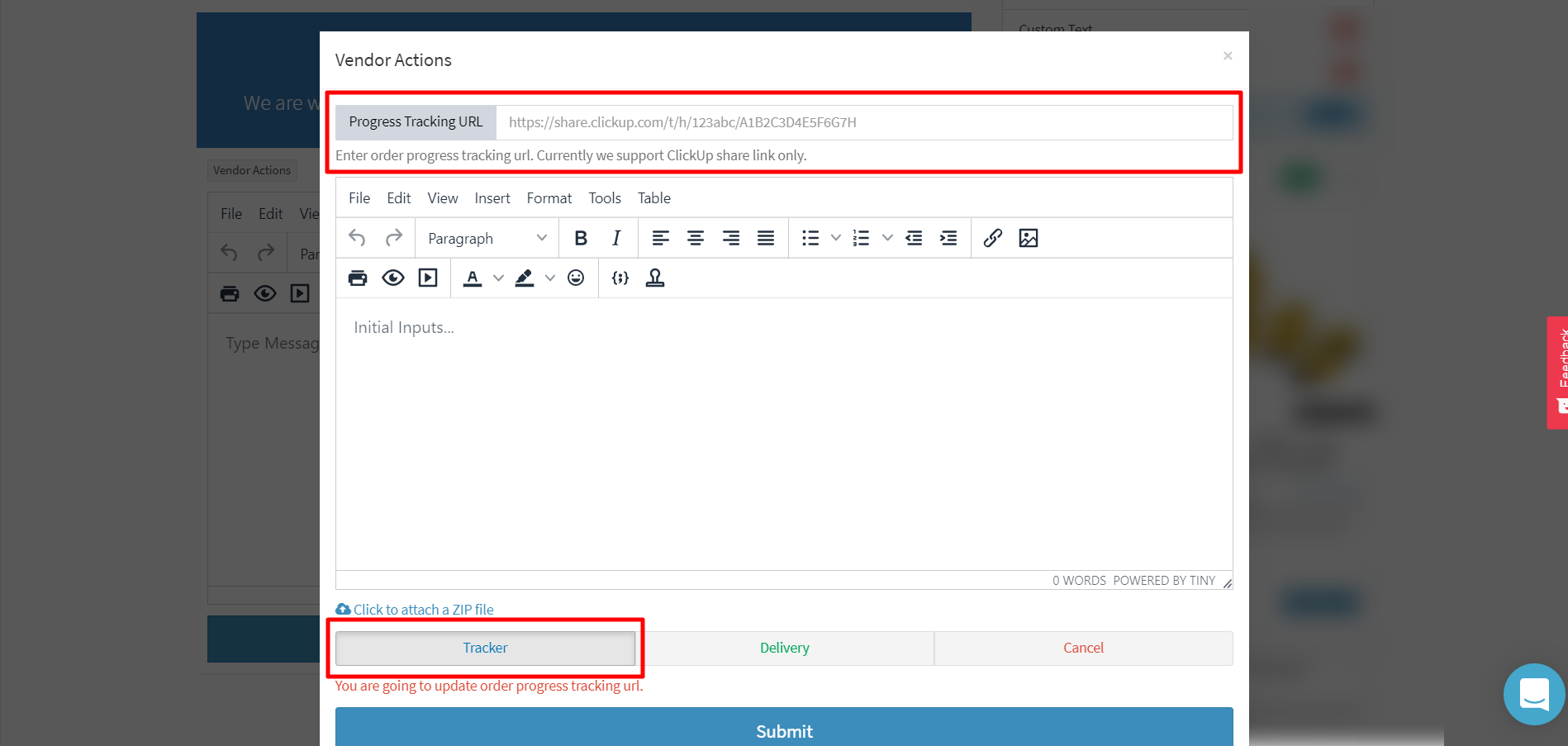
- Finally, you can draft a nice message or use template and click "Submit" to sent it.
<span class="wysiwyg-underline">How to Mark Delivery?</span>
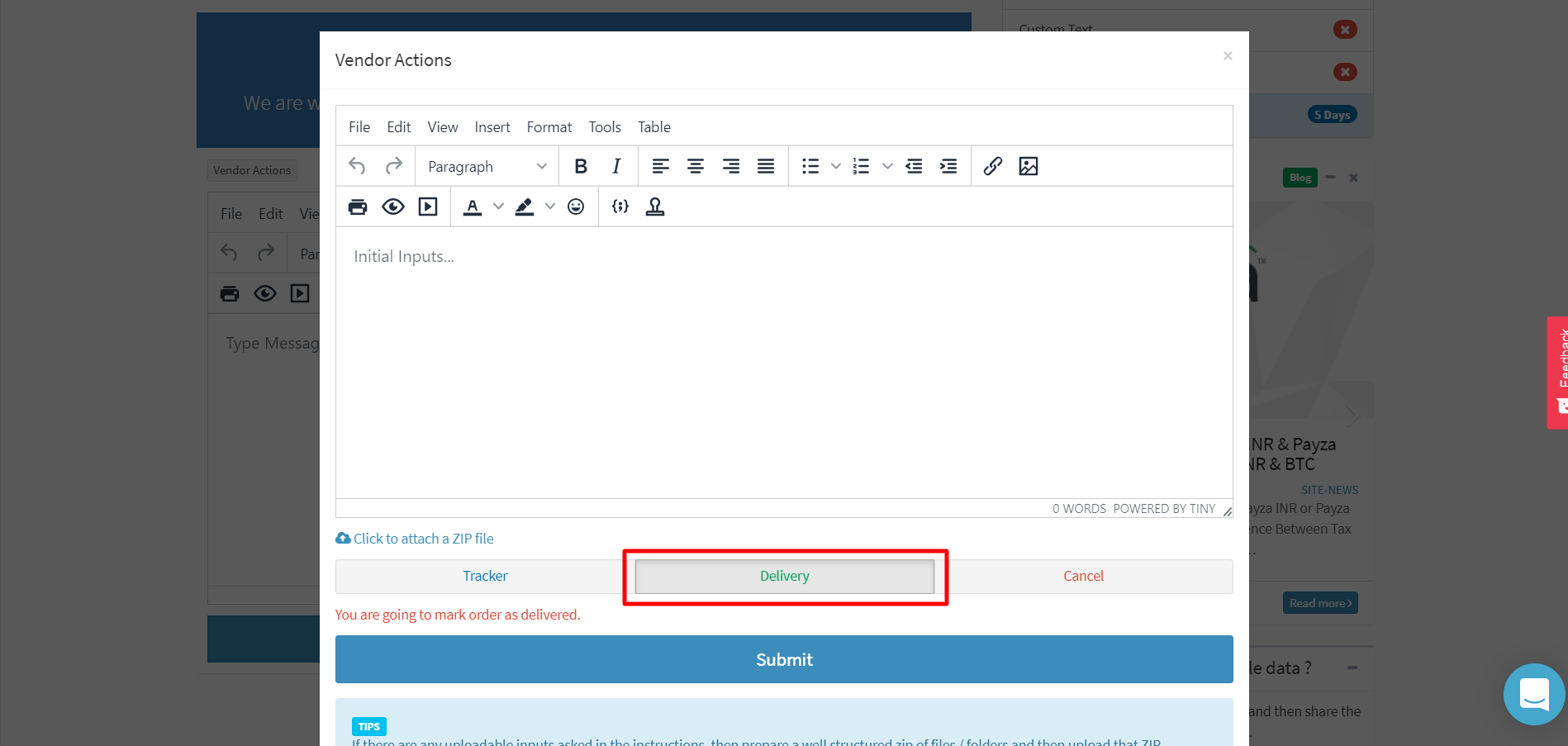
- Find "Vendor Actions" button and click it.!mceclip2.png
- Click "Delivery" and draft a nice message or use template and click "Submit" to sent it.
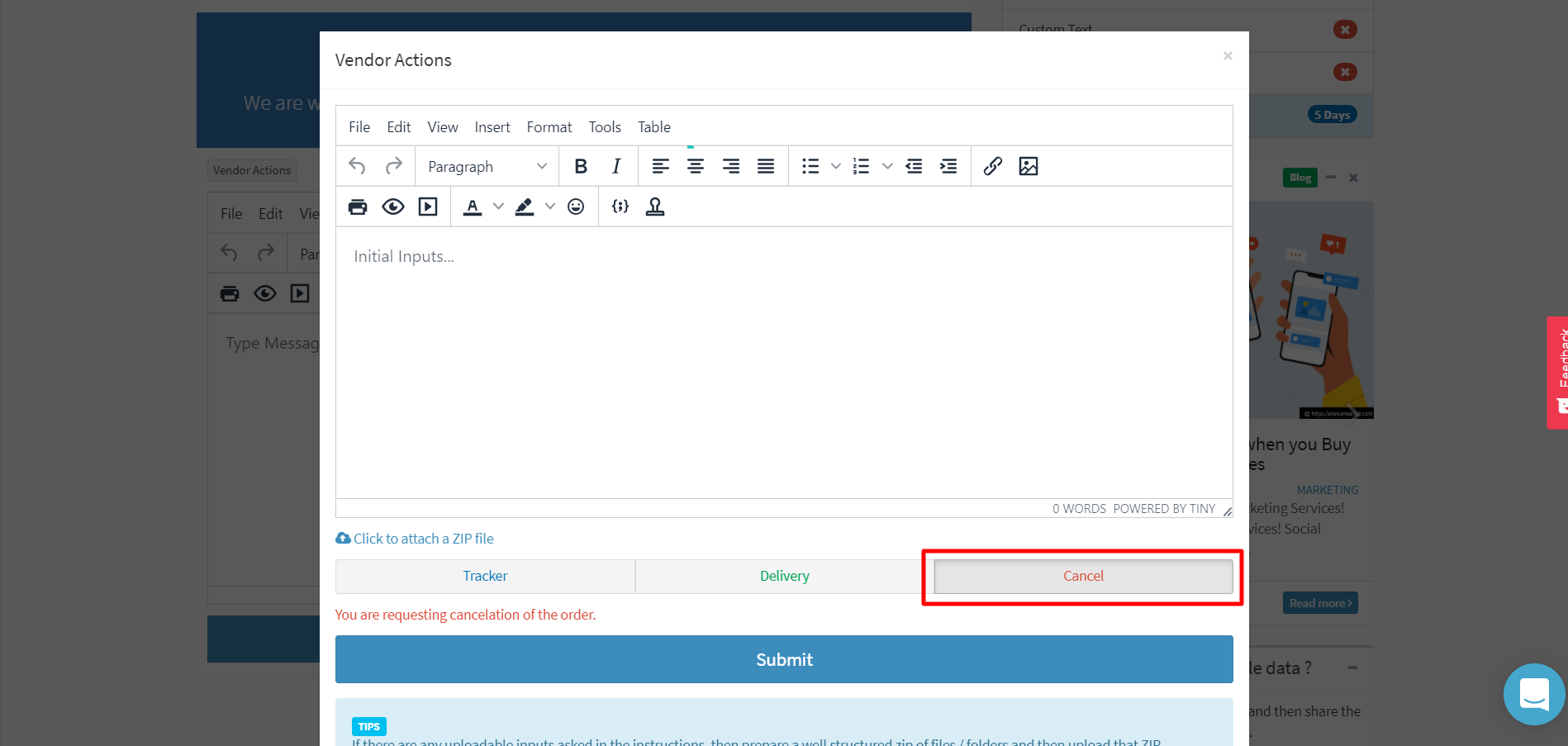
<span class="wysiwyg-underline">How to Request Cancellation?</span>
- Find "Vendor Actions" button and click it.!mceclip2.png
- Click "Cancel" and draft a nice message or use template and click "Submit" to sent it. <span class="wysiwyg-underline">
 /span>
</div>
Updated on: 20/03/2026
Thank you!