> ## Knowledge Base Index
> Fetch the complete knowledge base index at: https://help.smartxaas.io/sitemap.xml
> Use this file to discover available pages before exploring further.
> Pure-Markdown content can be obtained by appending a '.md' suffix to the content URLs listed in the sitemap (without the trailing slash).
# How to Place an Order (Buying a Service)
[Open in Zendesk](https://smartxaas.zendesk.com/hc/en-us/articles/360041458532) |
---
Please go through this quick guide and follow the instructions given below to get started quickly:-
**Overview:**
1. [Register a FREE Account on our Self-Serve Platform](#h_c85cf3c7-d8d8-4ced-b11b-6ae769bd0c17)
2. [Add some Funds to your Account Balance](#h_2e01b0d9-272c-405b-830c-d5118727b43b)
3. [Create an Order](#h_b8b9790d-a45e-4873-bf98-c1a12259b50f)
4. [Manage your Orders](#h_515552436101537193228316)
1. Register a FREE Account on our Self-Serve Platform
-------------------------------------------------------------------------------------------------------------------------------------------
If you are NOT registered on our self-serve platform yet then please register a FREE account at to get started._Note: Please make sure to activate your account by verifying your email =>[ Resend Activation Email](https://elancemarket.com/account/resend.php)_2. Add some Funds to your Account Balance
----------------------------------------------------------------------------------------------------------
You need to add funds in your account balance at (login required) by using an appropriate payment processor such as PayPal, Payoneer, Wire, Paytm ...etc before creating the campaign.
3. Create an Order
-----------------------------------------------------------------------------------
You can create order at (login required)
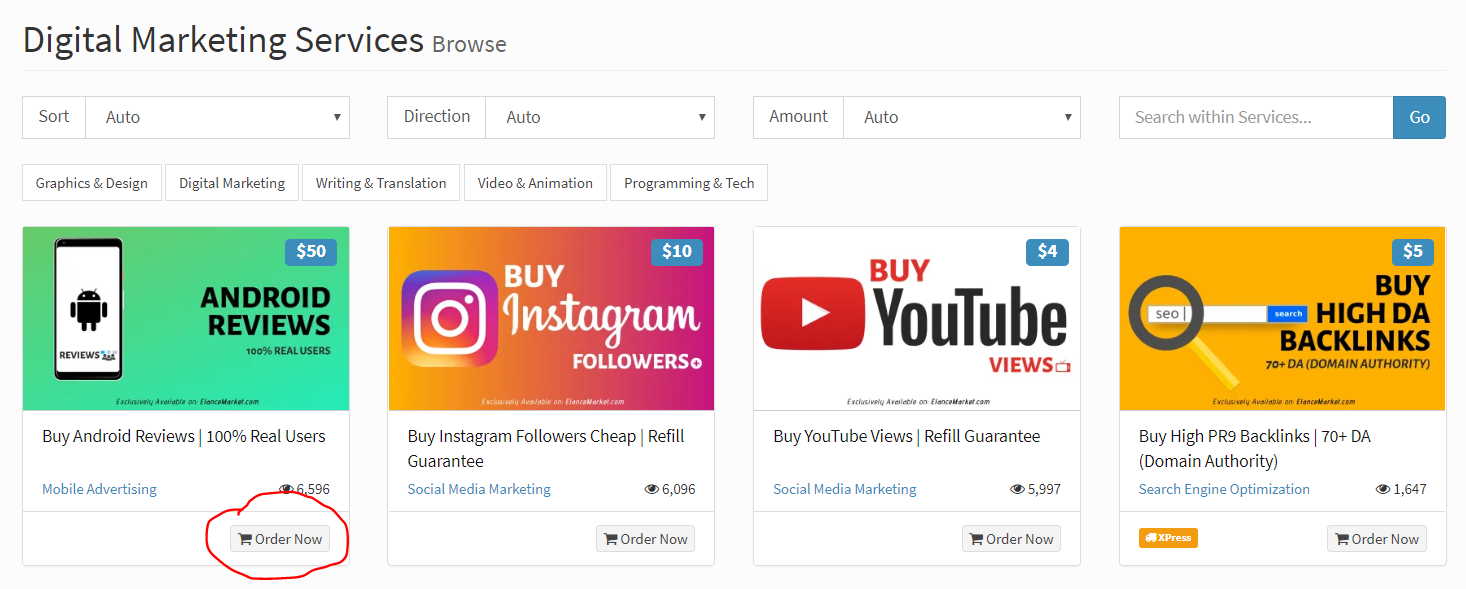
Now you can choose any service and click on**'Order Now'**for ordering your service.
**Package:**You can choose from three packages (if available)
1. Basic
2. Standard
3. Premium**Quantity:**You can enter how much quantity you want.
Now click**Create Order.****Tip:**Before creating campaigns, please [add sufficient funds](https://app.elancemarket.com/wallet/deposit) in your account balance.
4. Manage your Orders
------------------------------------------------------------
You can manage all your campaigns at (login required) from your dashboard.