> ## Knowledge Base Index
> Fetch the complete knowledge base index at: https://help.smartxaas.io/sitemap.xml
> Use this file to discover available pages before exploring further.
> Pure-Markdown content can be obtained by appending a '.md' suffix to the content URLs listed in the sitemap (without the trailing slash).
# How to Contact your Order Manager (Seller)?
[Open in Zendesk](https://smartxaas.zendesk.com/hc/en-us/articles/360045290151) |
---
If you have any query regarding your order, you may reach out to your order manager directly from your [buyer dashboard](https://app.elancemarket.com/order?dashboard=buyer). You order manager (seller) should reply you within 24 hours._**NEW:**You can now utilize the "**Remind the Seller**" button located on the order progress page to promptly send a reminder email to the seller requesting an update on the status of the order._If your order is "Processing"
--------------------------------------------------------------------
- You may contact your Order Manager from the order progress page by sending him a reply message.
- Kindly go to (login required) and click "**Progress**" button to open the respective progress page for that order.
- On the order progress page, you will find a reply box with textarea where you can enter your message and hit the "Send" button to send your message to the order manager. Kindly check screenshot below as an example:-_Screenshot:_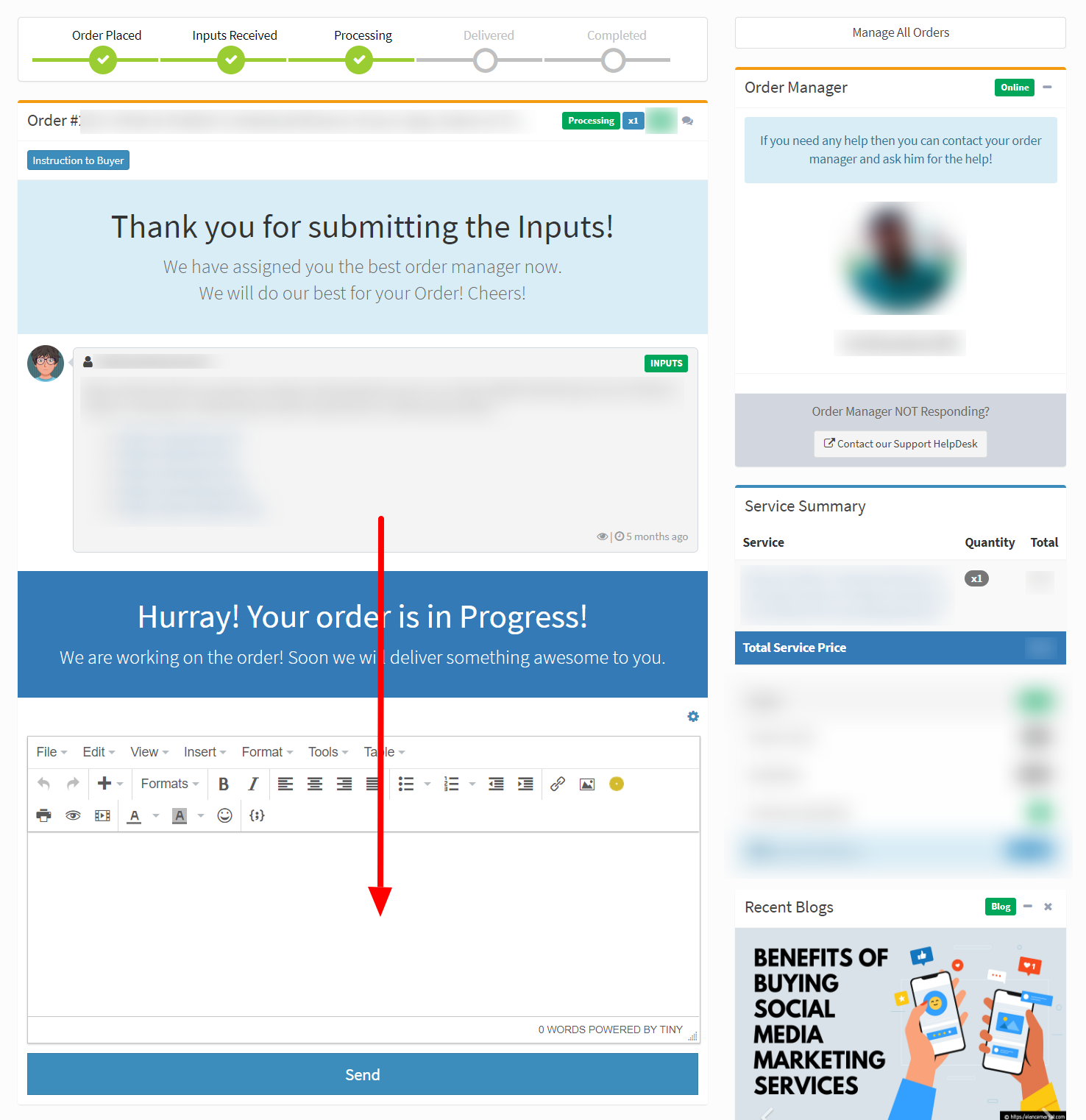
If your order is "Completed"
-------------------------------------------------------------------
- You may have to [reach out to support](https://elancemarket.com/contact?type=Order&subject=Re-Open+my+Order&message=I+want+to+re-open+(revision)+my+order+because....#ContactUs) and request them to re-open (revision) the order for you.
- Make sure to give a compelling reason for why you want to re-open (revision) it, team will verify and check eligibility for the same.
- If your request found eligible, team will re-open (revision) the order and ping the order manager.
- Once the order is re-open (revision), you should be able to send a reply message to your order manager from order progress page.